A face morph is a visible blend that melts one photo smoothly into another. A face swap pastes one person's face onto a different body or photo. A deepfake fabricates a fake video of a real person doing or saying something they never did. Morphing is a morph tool: honest, your own photos, on-device, and it fakes nothing.
These three terms get mixed up constantly, but they are not the same thing, and the difference really matters for what is fun, what is honest, and what is fair to the people in your photos. Here is the plain-English version.
What is a face morph?
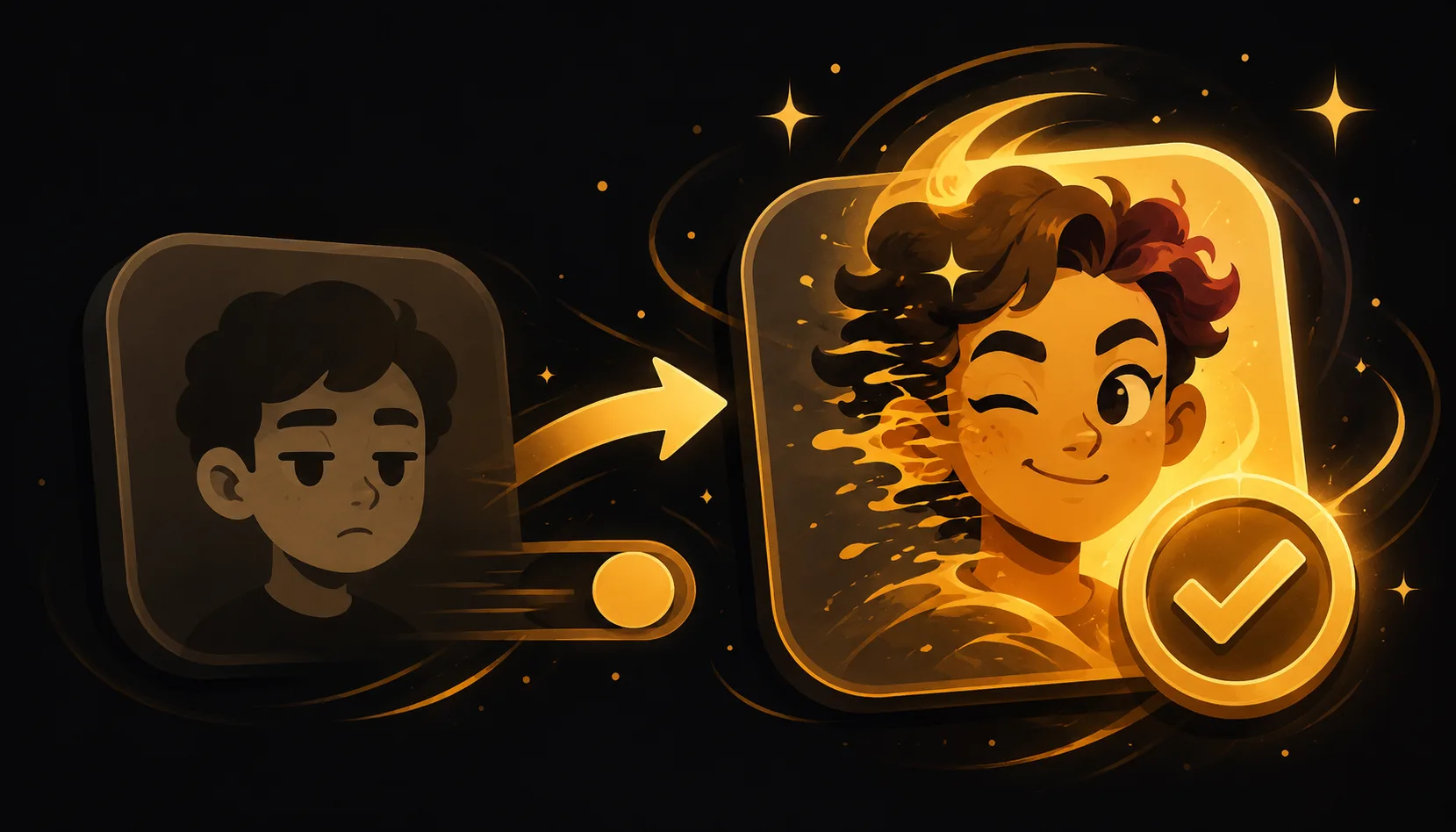
A face morph is a smooth, in-between transition between two images you choose. The first face gradually melts into the second across a series of frames, so you actually watch one become the other. Nothing is hidden and nothing is faked, you can see the blend happening the whole time. The output is a short animation you can save and share.
That is exactly what Morphing does. You pick your own photos, it lines up the eyes, nose and mouth, and it builds an honest transition you can export to video or GIF.
What is a face swap?
A face swap takes one person's face and places it onto another body, photo or scene. Instead of a visible blend, the goal is usually to make it look like someone's face was always there. Light, joke-style swaps between friends can be harmless, but the technique is also where consent gets murky, because it puts a real face somewhere it never actually was.
What is a deepfake?
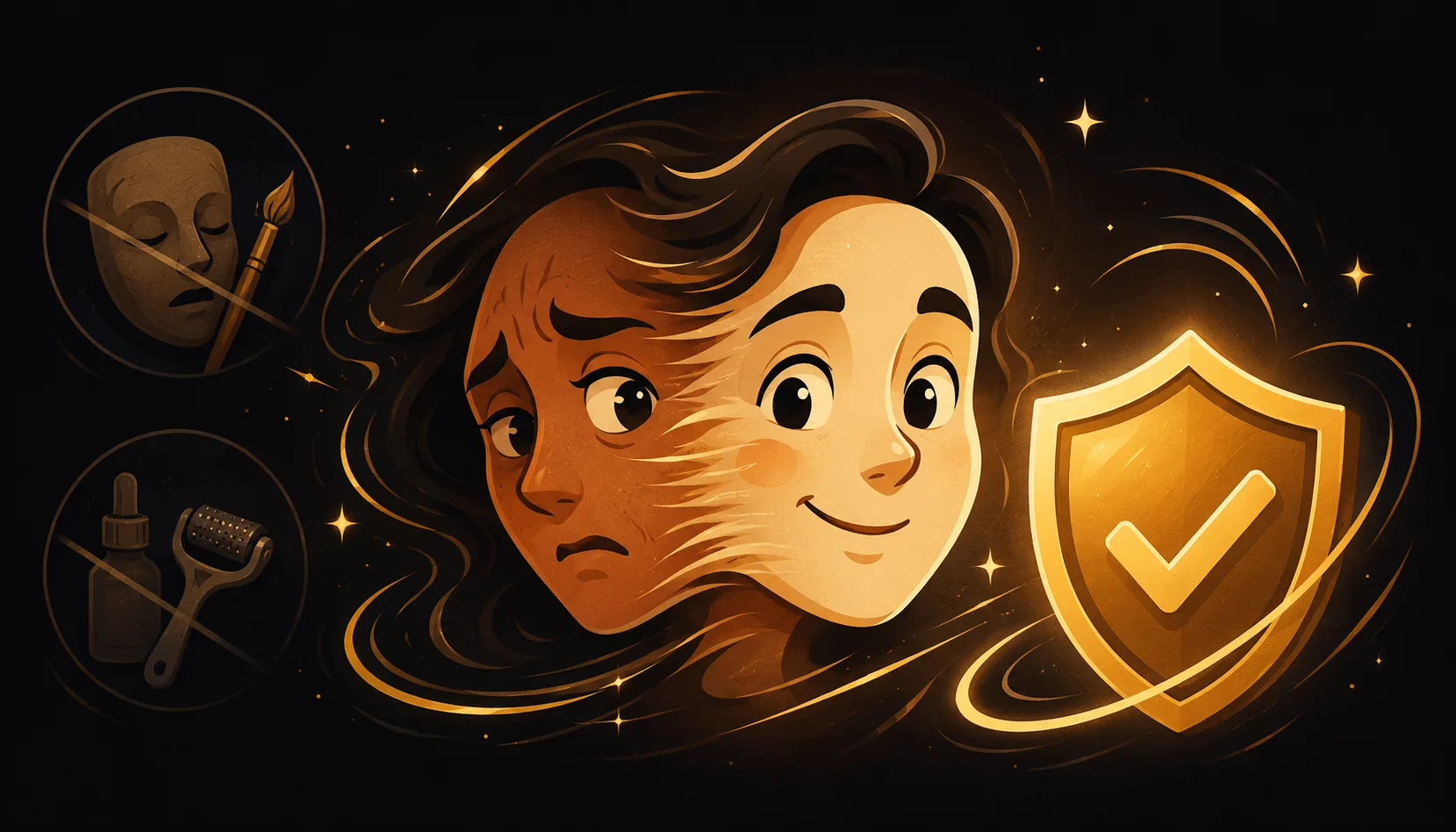
A deepfake is a fabricated video (or audio) that makes a real person appear to do or say something that never happened. It is built to deceive, to pass as genuine footage. This is the category that raises real legal and ethical problems, especially when it targets a real person without their knowledge or consent. A morph is the opposite of this: it shows the blend openly and invents no fake "event."
Face morph vs face swap vs deepfake: comparison table
| Technique | What it does | Honest and consensual by nature? | Typical use |
|---|---|---|---|
| Face morph | Visible blend/transition between two photos you choose | Yes, the blend is open and uses your own photos | Fun animations, couples, kids growing up, group morphs |
| Face swap | Puts one face onto another body or photo | Depends, can cross into impersonation | Jokey edits, costume effects |
| Deepfake | Fabricates a fake video of a real person | No, designed to deceive | Misleading or impersonation content |
The simplest way to read this table: a morph shows you the blend, a swap hides the seam, and a deepfake hides that it is fake at all.
Why Morphing is a morph tool, not a deepfake tool
Morphing sits firmly in the first column. It is a creative face-morph app, built for fun, and it fabricates nothing:
- It uses your own photos, the ones you pick from your library.
- The result is a visible blend, an honest transition you can literally watch happen.
- It runs entirely on your iPhone, with no account and nothing uploaded to a server.
- You get hand-editable morph points, so you can drag the eyes and mouth into place for a clean blend instead of a blurry guess.
- You can morph 3 or more faces in one continuous animation, then export real video or GIF.
It is not a face-swap-onto-a-stranger tool and it is not a deepfake generator. It blends faces you already have, in the open.
Is morphing your photos legal and safe?
For the normal, intended use, yes. Morphing your own photos, or photos of people who are happy to be morphed, for fun and sharing, is a friendly creative activity. Because everything happens on-device, your images are not uploaded anywhere, which is a nice safety bonus.
The one rule worth keeping: do not use someone else's face without their consent. If you want a lookalike or celebrity vibe, use your own photos, not a real person's image taken without permission. Morphs are meant to be playful and honest, so keep the people in them on board.
How to make a face morph in Morphing
- Open Morphing and tap to start a new morph.
- Add your faces. Pick two photos from your library (clear, front-facing shots work best).
- Let it align them. It places points on the eyes, nose and mouth automatically.
- Fine-tune the points. Drag a few by hand for a crisp, ghost-free blend.
- Add more faces if you like, for a multi-face sequence.
- Export to video or GIF and share it.
That is the whole flow, and it takes about a minute. Want to try it? Get Morphing or browse more guides on the blog.