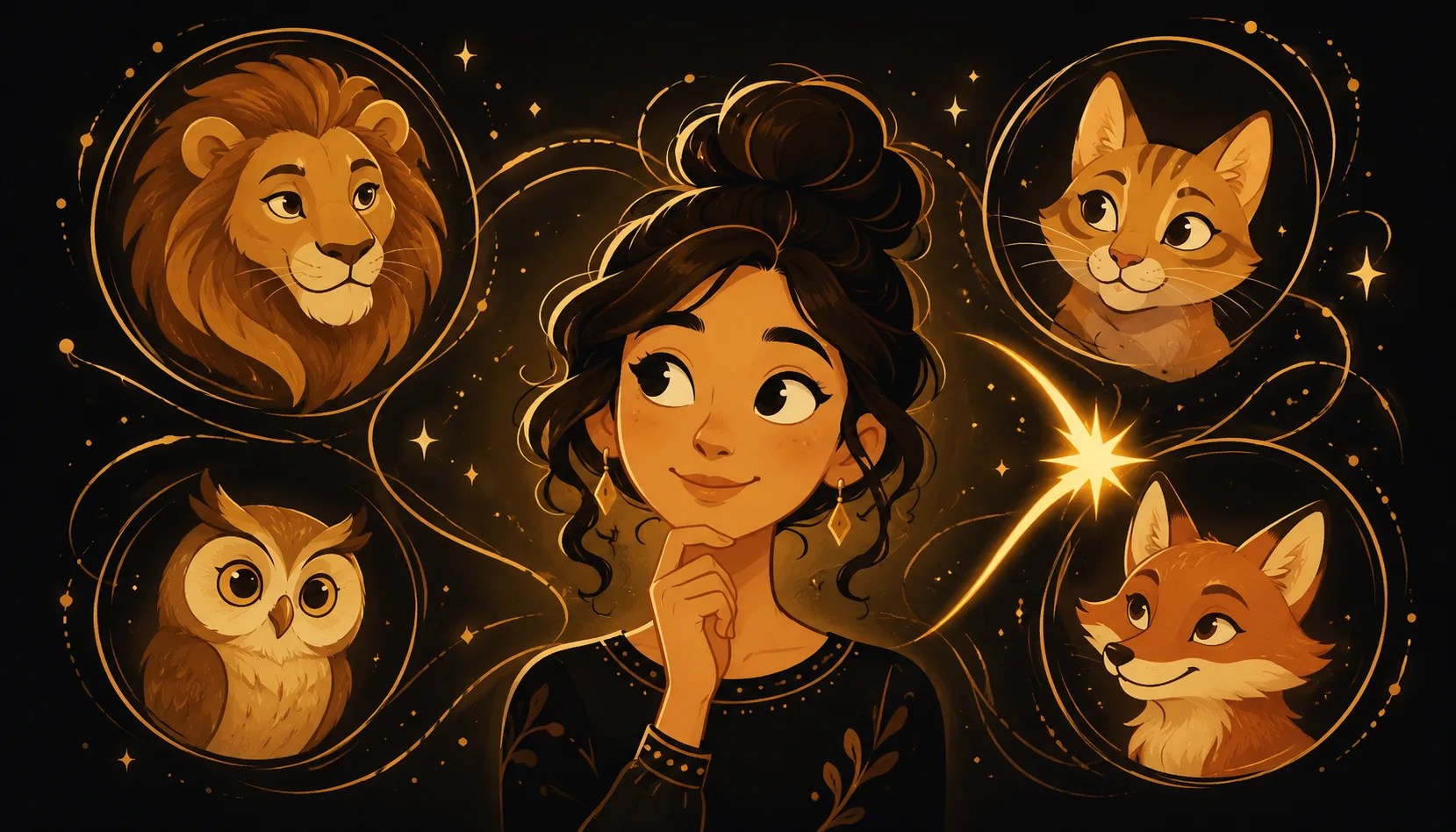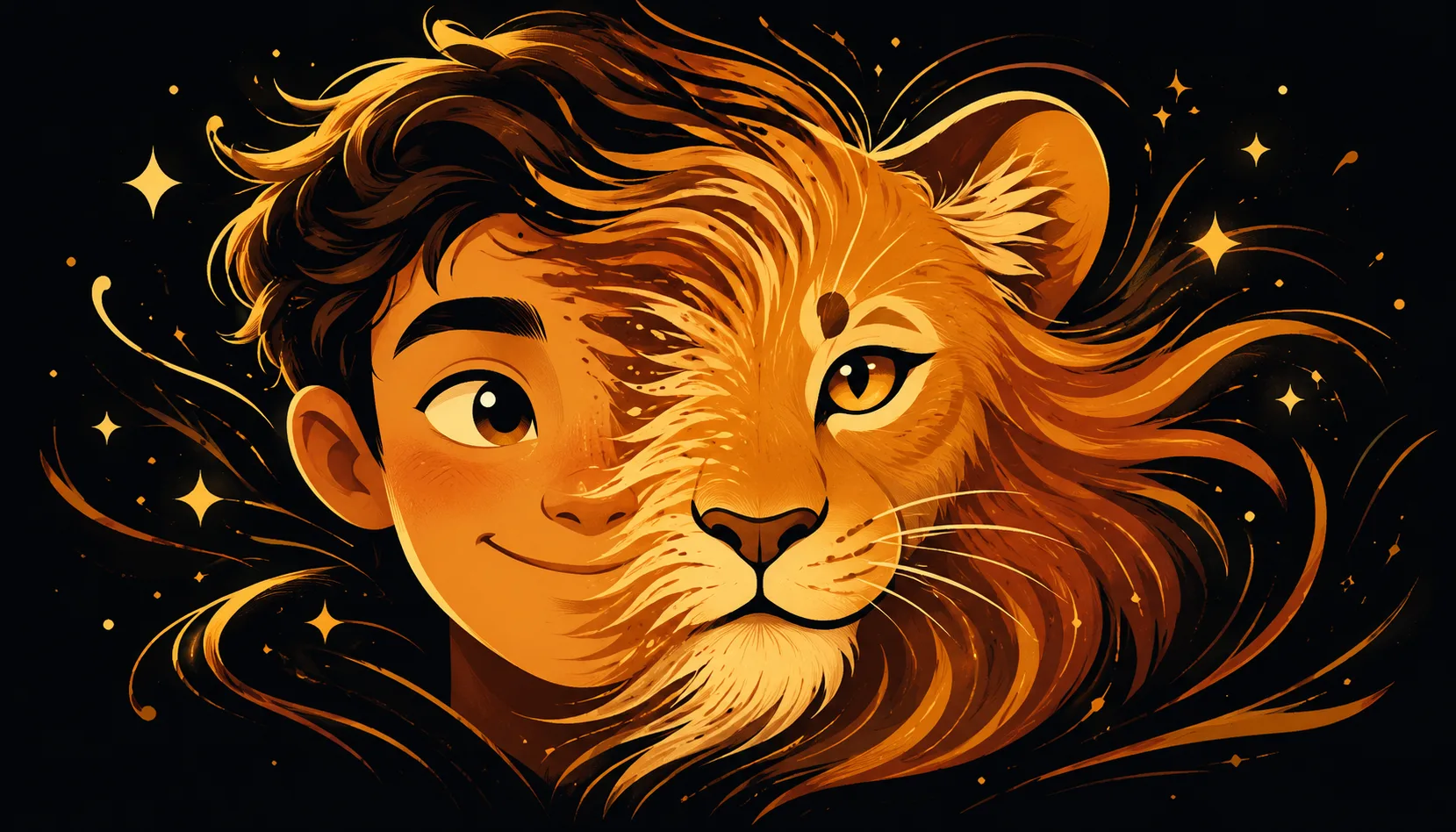
To morph your face into an animal on iPhone, install Morphing, add a clear front-facing photo of yourself plus a photo of an animal (lion, cat, dog or tiger), let the app place the morph points, drag your eyes onto the animal's eyes for a clean blend, preview, add music, then export to video or GIF.
How do you morph your face into an animal on iPhone?
A face-to-animal morph is an honest, visible blend between two photos you pick: your own face and an animal. It is not a face swap or a filter, just a smooth animation of one melting into the other. Here is the full flow.
- Download Morphing from the App Store and open it.
- Add two photos. Pick a clear, front-facing shot of your face, then add your animal photo (a lion, cat, dog or tiger works great).
- Let it align the points. Morphing drops control points on the eyes, nose and mouth so the two faces line up automatically.
- Drag the points for a clean blend. Nudge the points so your eyes meet the animal's eyes, and your mouth meets its mouth. This is where the magic happens.
- Preview. Tap play and watch your face melt into the animal and back.
- Add music if you want a soundtrack for the reveal.
- Export to video or GIF and share it.
No account, and nothing is uploaded to a server. The whole thing takes about a minute.
Which animals work best for a face morph?
Animals with a forward-facing face and visible eyes blend the cleanest, because Morphing has clear points to match to your own. Here is a quick guide.
| Animal | Why it works | Watch out for |
|---|---|---|
| Lion | Big symmetrical face, strong mane frames the blend | None, the easiest win |
| Cat | Front-facing eyes, expressive features | Pick a head-on shot, not a profile |
| Dog | Friendly, lots of breeds to try | Long snouts shift the mouth point |
| Tiger | Bold stripes read beautifully mid-morph | Use a calm, front-facing photo |
In general: front-facing beats profile, two visible eyes beat one, and a roughly head-on head size close to your own gives the smoothest in-between frames.
Tips for a clean human-to-animal morph
The difference between a blurry blend and a crisp one is the control points, and this is exactly where Morphing's hand-editable points shine. Most one-tap apps only auto-place points and leave you with ghosting. You can drag every point yourself.
- Match the eyes first. Eyes are what your brain locks onto, so line your eyes up with the animal's eyes before anything else.
- Then the mouth and nose. Pull those points into place so features do not smear during the transition.
- Use similar head sizes. Crop or pick photos where your head and the animal's head fill a similar area of the frame.
- Keep lighting even and backgrounds simple, so the faces stay the focus.
- Spend ten seconds tuning. A few small nudges on the points is the single biggest quality boost you can make.
Fun ideas for animal morphs
Once you have the flow down, the ideas are endless and all of them use your own photos:
- Morph with your pet. Blend your face with your cat or dog for a hilarious "we really do look alike" clip.
- "What animal are you?" Try yourself against a lion, a tiger and an owl, then keep your favourite reveal.
- Multi-animal chain. Morphing can morph 3+ faces in one animation, so go you to cat to lion to tiger in a single continuous clip.
- Friend group safari. Each friend morphs into a different animal, then stitch them into one shareable video.
Keep it to photos you own or have permission to use, and you are good to go.
How do you export and share your animal morph?
When the preview looks right, export straight to your photo library and post it anywhere.
| Format | Best for | Loops |
|---|---|---|
| Video (MP4) | Reels, TikTok, Stories, messaging | No |
| GIF | Chats and quick reactions | Yes |
Both export at high quality, ready to send. Because Morphing runs entirely on your iPhone, your photos never leave the device and it keeps working with no signal.
Ready to become a lion? Get Morphing and make your first animal morph in about a minute. Want more ideas first? Browse the blog.